
SQL Query Sensors
SQL sensors allow for measuring connectivity, query execution, and result data processing as metrics or statuses. Supported databases: Oracle, SQL Server, PostgreSQL, MySQL, MariaDB, ODBC.
Supported Databases
ODBC
NetCrunch supports ODBC sources and several native drivers. It requires x64 ODBC drivers to be installed. Please remember that you must use System DSN because NetCrunch runs as a service process and can't access your User DSNs.
SQL Server
To use the SQL Query Sensor in NetCrunch, install ODBC Driver 18 for SQL Server on the NetCrunch server. This ensures compatibility with SQL Server 2008 and later, including SQL Azure.
The sensor does not support the Numeric(18,0) data format and treats it as a string value. Use float, real, or int for numeric data.
Oracle
The program supports Oracle 11 up to 23, depending on the drivers you install. OCI v19 is the latest driver supported, but it will work with newer databases.
Installing Oracle Instant Client drivers
- Go to Oracle.com and search for Instant client windows x64.
- Download basic client x64.
- Extract the contents to
\external\Requesters or other folders, but you must add the path to the system Path variable. - Restart the NetCrunch Server service.
PostgreSQL
The latest driver is installed with NetCrunch. No further installation is needed.
MySQL, MariaDB
The latest driver is installed with NetCrunch. No further installation is needed.
Managing Database Connections
Each sensor allows the creation of connection profiles. If you do not save the profile, it's named ** Custom** and saved only for a given node.
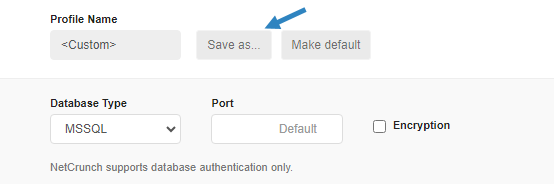
If you saved the connection profile, you could reuse it for multiple SQL sensors, even on another node, if they use the same settings. You can edit the profile from the sensor setting, but to save changes, you have to save it and override the previous profile settings. Otherwise, the profile will automatically become Custom.
You can also manage database profiles in the Credential Manager. Settings Monitoring Main Monitoring Credentials Manager Database connection
Checking if the sensor can connect to a database
OK. You set the credentials, and now it is time to connect. Select the database selection button, and you should see the list of databases or get an error message.
sql-query$object
SQL Query:Object
It allows executing a query returning a single row. It can also be used with an empty query to check database authentication and connectivity. The row can represent an object, and the columns can represent object properties. The sensor allows setting an alert on the status of object properties.
- Select a connection or create a new one with proper database credentials.
- Select the database from the list.
You can keep your query empty. Then, the sensor will only connect to the given database, and its status will reflect database connectivity.
When you write your SQL query query, ensure it will return a single data row. This row of data can now be used to monitor status change values.
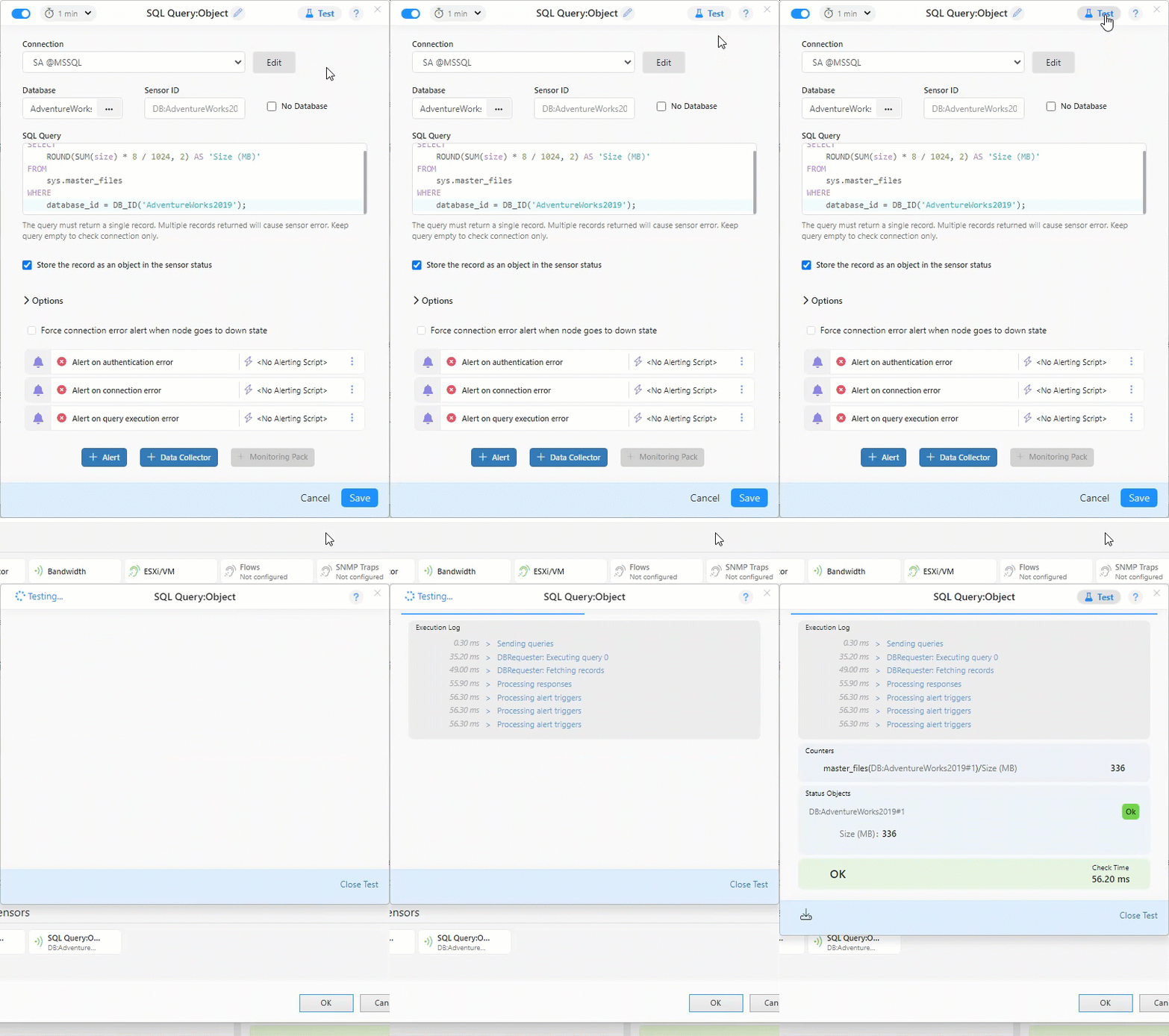
You can test your sensor query by clicking the test icon at the window's top right corner.
Predefined alerts:
- Authentication error
- Connection error
- Empty result set
- Query execution error
sql-query$data
SQL Query:Data
Allows executing a query returning multiple rows. Columns can be used as a source for metrics. The metrics enable threshold alerts to be triggered and used for reporting.
- Select a connection or create a new one with proper database credentials.
- Select the database from the list.
- Enter the SQL query query.
- Select the Instance Column to identify rows in the table.
Now, you can add counters and set thresholds.
Example
Let's try grouping table elements by name and counting them. This way, we can create a single counter; the instance is the name.
SELECT COUNT(*) AS Count, Name FROM MyTable GROUP BY Name
In this case, we have a single metric, Count, and the Name column will be the instance column.
No Database option
Some queries aren't directly related to any database. The 'No Database' option allows for selecting multiple databases and data related to them in queries.
Example
   SELECT      sys.databases.name,
       CONVERT(int,SUM(size)*8/1024) AS [Total disk space]
   FROM        sys.databases
   JOIN        sys.master_files
   ON          sys.databases.database_id=sys.master_files.database_id
   where sys.databases.database_id > 4
   GROUP BY    sys.databases.name
   ORDER BY    sys.databases.name
Remarks
SQL sensors require being configured with the actual database connection. The query needs to be executed to select counters and status objects properly. - Only columns of numerical types can be used for counters. Use the CAST expression (or CONVERT in T-SQL) and alias name to cast the text column into numerical type. - Maximum number of returned values is 1000 - Default Request timeout is 15000 (15 seconds)
Beware when editing the query. Your counters may no longer match the query results.