
Custom Data Parsers
Data Parsers transform and analyze external data, returning NetCrunch counter metrics and status objects.
Data parsers transform external data into NetCrunch's internal format, describing counters and status objects. Several sensors can use Data Parser to retrieve this data from external sources.
XPath/DOM Data Parser
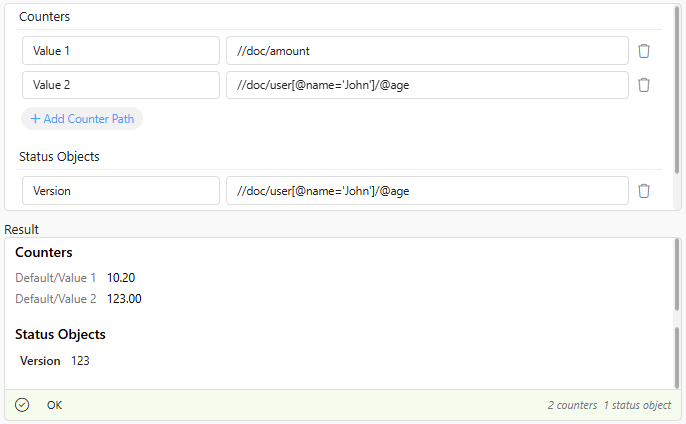
You can define a list of counters and status objects, along with their respective paths. You can use either XPath or CSS selectors, whichever you prefer. While CSS selectors are typically used to select DOM nodes, we have extended the syntax to include attribute names by adding a '|' pipe character after the selector.
Example
<doc>
   <amount>10.2</amount>
   <user name="John" age="123"/>
</doc>
Selectors
- To get Amount you can use XPath selector
//doc/amountor DOM selectordoc > amount - To get John's age, you can select it by
//doc/user[@name='John']/@ageor by the extended DOM selectordoc > user[name='John'] | age.
JSONPath
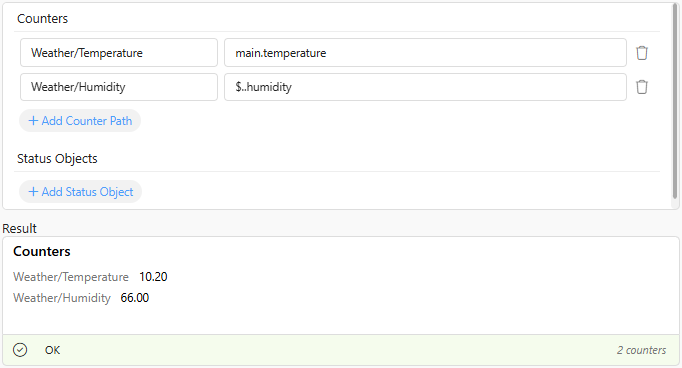
JSONPath is similar to XPath in that it offers many of the same capabilities. For simple paths, you can use simple dotted paths.
Example
{
  "main" : {
      "temperature" : 10.2,
      "humidity" : 66
  }
}
This is a simple example, but very similar to the actual data provided by one of the public weather APIs.
- Temperature can be selected by simply
main.temperature - For Humidity we can use JSONPath
$..humidity
JavaScript Data Parser
JavaScript is a good solution for parsing data, as you can use regular expressions and the whole power of the JavaScript engine (V8), which implements the latest ECMAScript language standard.
Your script runs in strict mode in a separate, sandboxed Node.js environment and is killed if it exceeds the time limit. In addition to the regular runtime (which doesn't support loading any external modules), we provided the most useful utilities for parsing JSON, XML, and HTML.
Test Console
The Data Parser editor is a small development environment that lets you test a script by running it in the actual NetCrunch scripting engine. You can provide test data and use console objects to log messages to the test console.
Script Parameters and The Result
Your script receives two parameters:
- data - it contains input data. It can be text as a buffer object. It depends on the data type you expect from the source.
- result - script result object that simplifies providing a list of counters and status objects.
Counters
The counter metric represents numerical values observed by NetCrunch. This is one of the fundamental building blocks of NetCrunch. The counter path describes:
- Object - if left blank, the sensor identification will be used as the object. It describes the measured subject. The programming term describes the class of the measured subject. For example, Process, Disk.
- Counter - The name of the metric. For example, Temperature, % Utilization%.
- Instance—identifies the object's instance. It's optional, so it can be a disk ID, process name, etc.
Counter Path Format
<Object>/<Counter>.<Instance>
Examples
Process/% Processor Utilization.NCServer.exe
Website/Current Visitors
Status Objects
The Status Object describes the state of the monitored object. It can be simply a string or more complex data. Unlike for counters, there are no special requirements for the status object name.
Well-known status values:
- unknown
- ok
- warning
- error
Complex Status Object
           "Disk C:" : {
                         "value" : "ok",
                         "message" : "Working fine",
                         "retain" : 5,
                         "critical": true,
                         "data" : {
                            "type" : "SDD",
                            "upTimeSec" : 123431
                          }
            }
The status object can contain fields such as:
-
Value - a status value that can be any string, but if one of the standard values is used, NetCrunch will use the value for calculation alert conditions. The field is required to recognize the status object. Otherwise, the whole object will be treated as a text string. Standard values are: ok, error, warning, disabled, unknown.
-
Name - a name for the object; it does not have to be unique. (optional)
- Message - this can be a message describing the state (for example, an error message). (optional)
- Received - a time when the status has been read. (optional)
- Retain - how long will the status be valid if no new status is received after it becomes unknown?
- Class - status class. If specified status history will be saved to the database. The class helps UI understand data associated with the status and display it appropriately.
- Data - custom data. It can be any JSON object, except that if class points to a well-known class, it must conform to the class data format.
Providing Result
All result functions can be chained.
result.counter('Value', 10).counter('Value 2', 20);
result.counter(path,value)
Add counter value to the sensor result.
result.counter('% Utilization', 23.5);
result.counter(obj)
You can add multiple counters as a single object.
 result.counter( {
    "Temperature" : 33,
    "Humidity" : 65
 });
result.status(name,value[,message])
Set the status of the object:
result.status('Door 1', 'closed' ).status('Door 2', 'opened');
result.status(obj)
Set complex status object.
 result.status('Light 1', {
   value : 'ok',
   data : {
     color: 'red'
     switchedOn : "2021-03-11T22:20:59.903Z"
  }
result.error(message)
You can set the '@parser' status object to change the sensor status to critical. This way, if the data are not what you expect, you can pass the error to the sensor.
result.error('Missing section')
result.warning(message)
Use it to change the sensor status to 'warning'.
Examples
We assume you are familiar with ES6. You can use the older syntax, as JavaScript is backward-compatible.
Simple
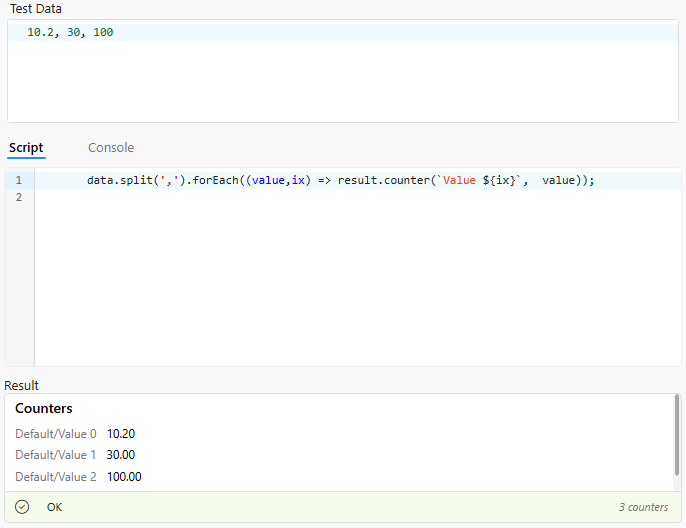
It uses one of the simplest data-encoding formats. It's just a series of values without names, separated by a comma.
Test Data
10.2, 30, 100
Script
data.split(',').forEach((value,ix) => result.counter(`Value ${ix}`, value));
Parsing XML/HTML data
As JavaScript does not natively offer an XML parser, we added one. You can use XPath and CSS selectors to select elements or attributes.
Simple XML document
NetCrunch includes a DOM parser. You can use it at a low level (please refer to xmldom.js on the Internet) via the DOMParser constructor or a convenient DOM class we provided.
DOM
doc.nodes(xpath)
Returns all elements matching the given XPath.
Example
  <doc>
      <value name="Temp">10.2</value>
      <value name="Fan Speed">100.2</value>
   </doc>
Script
   const doc = new DOM(data);
   doc
       .nodes('//value')
       .map(e => ([e.getAttribute('name'), e.firstChild.data ])
       .forEach(([name,value]) => result.counter(name, value));
The script above will return all values with proper names as counters.
doc.selectByXPath(path)
Returns values of elements matching the path.
doc.valueByXPath(path)
Returns a single (first) value regardless of the number of matching elements.
valueByCSS(path)
converts the CSS selector into XPath and calls valueByXPath to retrieve a single value. To select an attribute value, add the attribute name after the pipe |.
For example:
val[name='Temperature'] | value
Allows you to select the value from the following element:
<val name="Temperature" value="23.5"></val>
cssToXPath(selector)
This function converts a CSS selector to an XPath. To select an attribute value, you can append the attribute name after the pipe separator.
For example:
val[device='Fan'] | rpm
DOM parser can also be used to parse HTML documents, even if they do not conform to XML.
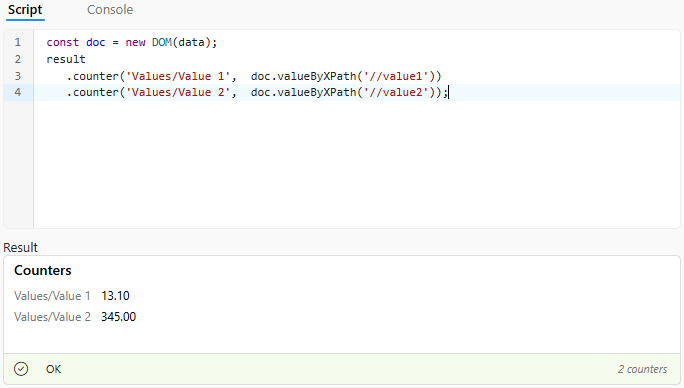
Data
<doc>
   <value1>13.10</value1>
   <value2>345</value2>
</doc>
Script
 const doc = new DOM(data);
 result
    .counter('Values/Value 1',  doc.valueByXPath('//value1'))
    .counter('Values/Value 2',  doc.valueByXPath('//value2'));
CSS Selectors
You can also use familiar CSS selectors using doc.selectByCSS
doc.selectByCSS('value1')
Parsing JSON Data
JavaScript has a built-in JSON parser that converts JSON data into native JavaScript objects.
Your script can use two methods to access object attributes.
selectProperty(obj,path)
Select a property by a dotted path.
selectByJSONPath(obj,path)
Select the property element by JSONPath.
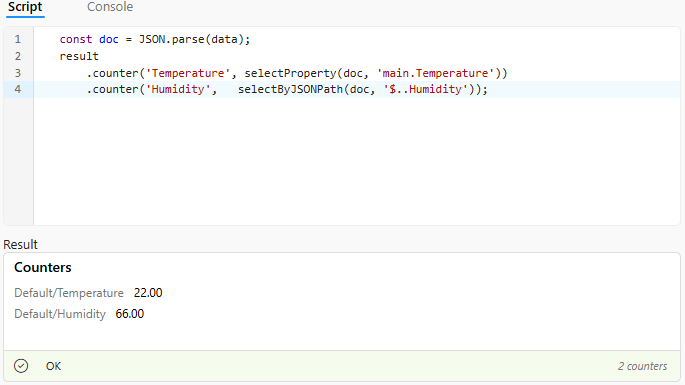
Example
Let's try to parse the data in a way similar to weather API services.
Data
{
  "main" : {
      "Temperature" : 22,
      "Humidity" : 66
  }
}
Script
   const doc = JSON.parse(data);
   result
       .counter('Temperature', selectProperty(doc, 'main.Temperature'))
       .counter('Humidity',   selectByJSONPath(doc, '$..Humidity'));
Python Data Parsers
The parser lets you write custom Python scripts (v. 3.11.0) to parse data from your sensors. In addition to the regular runtime (which doesn't support loading any external modules), we provided the most useful utilities for parsing JSON and XML. (JSON, ElementTree)
Test Console
The Data Parser editor is a small development environment that lets you test a script by running it in the actual NetCrunch scripting engine. You can provide test data and use console objects to log messages to the test console.
Script Parameters and The Result
Your script receives two parameters:
-
data - it contains input data. It can be text as a buffer object. It depends on the data type you expect from the source.
-
result - script result object that simplifies providing a list of counters and status objects.
Counters
The counter metric represents numerical values observed by NetCrunch. This is one of the fundamental building blocks of NetCrunch. The counter path describes:
-
Object - if left blank, the sensor identification will be used as the object. It describes the measured subject. The programming term describes the class of the measured subject—for example, Process, Disk.
-
Counter - The name of the metric. For example, Temperature, % Utilization%.
-
Instance - identifies an instance of the object. It's optional. So it can be a disk ID, a process name, etc.
Counter Path Format
<Object>/<Counter>.<Instance>
Examples
Process/% Processor Utilization.NCServer.exe
WebSite/Current Visitors
Status Objects
The status object describes the state of the monitored object. It can be a simple string or more complex data. Unlike for counters, there are no special requirements for the status object name.
Well-known status values:
- unknown
- ok
- warning
- error
Complex Status Object
"Disk C:" : {
               "value" : "ok",
                "message" : "Working fine",
                "retain" : 5,
                "critical": True,
                "data" : {
                    "type" : "SDD",
                    "upTimeSec" : 123431

                  }
    }
The status object can contain fields such as:
-
Value - a status value that can be any string, but if one of the standard values is used, NetCrunch will be able to use the value for calculation alert conditions. The field is required to recognize the status object; otherwise, the whole object will be treated as a text string. Standard values are: ok, error, warning, disabled, unknown.
-
Name - a name for the object; it does not have to be unique. (optional)
-
Message - this can be a message describing the state (for example, an error message). (optional)
-
Received - a time when the status has been read. (optional)
-
Retain - how long the status will be valid if no new status is received. After this time, the status becomes unknown.
-
Class - status class. If specified status history will be saved to the database. The class helps UI understand data associated with the status and display it appropriately.
-
Data - custom data. It can be any Dictionary object, except that if the class points to one of the well-known classes, it must conform to the class data format.
Providing Result
All result functions can be chained.
result.counter(path,value)
result.counter('Value', 10).counter('Value 2', 20)
Add counter value to sensor result.
result.counter(obj)
result.counter('% Utilization', 23.5)
You can add multiple counters as a single object.
result.counter( {
    "Temperature" : 33,
    "Humidity" : 65
 })
Simply set the status of the object
result.status(obj)
result.status(name,value[,message])
result.status('Door 1', 'closed' ).status('Door 2', 'opened')
Set complex status object
result.status('Light 1', {
   "value" : 'ok',
   "data" : {
     "color": 'red'
     "switchedOn" : "2021-03-11T22:20:59.903Z"
  }
You can set the '@parser' status object to change the sensor status to critical. This way, if the data is not what you expect, you can pass the error to the sensor
result.error(message)
result.error('Missing section')
Examples
Test Data
10, 15, 4.5
Script
for id, val in enumerate(data.split(', ')):
  result.counter('Value ' + str(id), float(val))
Exceptions
Scripts that are using 'import', 'exec', 'eval', or 'compile' are not allowed.
Sensors Using Data Parsers
Data File Sensor
This sensor can retrieve data from various sources, such as:
- Windows File
- HTTP/S (file or page)
- FTP/S
- SSH (SFTP or Bash)
Scripting Sensors
You can run scripts on the NetCrunch Server machine or remotely via SSH on a target machine.
Read more...
Data Sensor
The Data Sensor allows receiving data from an external source (agent). Data can be sent as JSON (native NetCrunch format) and in any other format that can be transformed using NetCrunch Data Parser.
Read more...
REST HTTP
It can send an HTTP request, including custom requests with URL query parameters. It also allows setting custom request headers and cookies. In combination with Data Parser, it can retrieve data from any external source.
Read more...